A26 Game APK Not Working: Common Errors and How to Fix
If your A26 Game APK is not working, the issue may be caused by an outdated app, an incomplete APK download, insufficient storage, Android compatibility problems, or an unstable internet connection. You may find that the app will not open, crashes unexpectedly, gets stuck on loading, or displays an “App not installed” error.
This guide covers common A26 Game APK problems and practical troubleshooting steps for Android users.
Why Is A26 Game APK Not Working?
Common causes include:
- An outdated or incompatible APK version
- A damaged or incomplete download
- Insufficient phone storage
- Installation permission restrictions
- Corrupted app cache
- Internet connection problems
- Conflicts with an existing app version
The right solution depends on the error displayed on your device.
1. A26 Game APK Is Not Opening
If the app does not open, try restarting your phone first. This can resolve temporary Android or application problems.
You can also force-stop the app:
- Open your phone’s Settings.
- Select Apps or App Management.
- Find A26 Game.
- Tap Force Stop, if available.
- Open the app again.
If the problem continues, check whether your installed version is compatible with your Android device.
2. A26 Game Keeps Crashing
If A26 Game opens but closes unexpectedly, the app may have a temporary software issue or compatibility problem.
Try these steps:
- Restart your Android phone.
- Close unnecessary background applications.
- Check your available storage.
- Clear the app cache.
- Check whether a compatible update is available.
To clear the cache, go to Settings → Apps → A26 Game → Storage → Clear Cache. Menu names vary between devices.
Avoid selecting Clear Storage unless necessary, because it may remove locally stored app data.
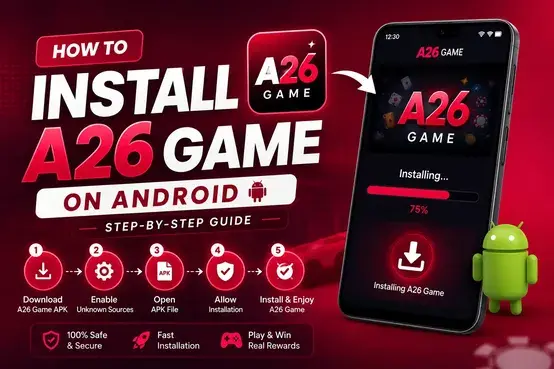
3. A26 Game APK Is Not Installing
If Android refuses to install the APK, check the following:
- Make sure the download completed successfully.
- Confirm that your phone has sufficient free storage.
- Check whether the APK supports your Android version.
- Review the installation permission for your browser or file manager.
- Verify that you downloaded the correct application file.
If the APK appears damaged, obtain a fresh copy from a source you trust.
For detailed instructions, visit our A26 Game APK Download page or follow the dedicated installation guide if available.
4. How to Fix the “App Not Installed” Error
The “App not installed” message can appear when Android rejects an APK.
Possible reasons include an incompatible file, insufficient storage, or a conflict with the existing app version. Android may also reject an update if its digital signature differs from the installed version.
First, verify the APK version and source. If you are updating the app, use a compatible release from the same distribution source where possible. Avoid uninstalling the existing app immediately, because doing so may delete locally stored data.
5. A26 Game Is Stuck on Loading
If A26 Game opens but does not load properly, check your internet connection.
Try switching between Wi-Fi and mobile data, then close and reopen the app. Restart your phone if necessary.
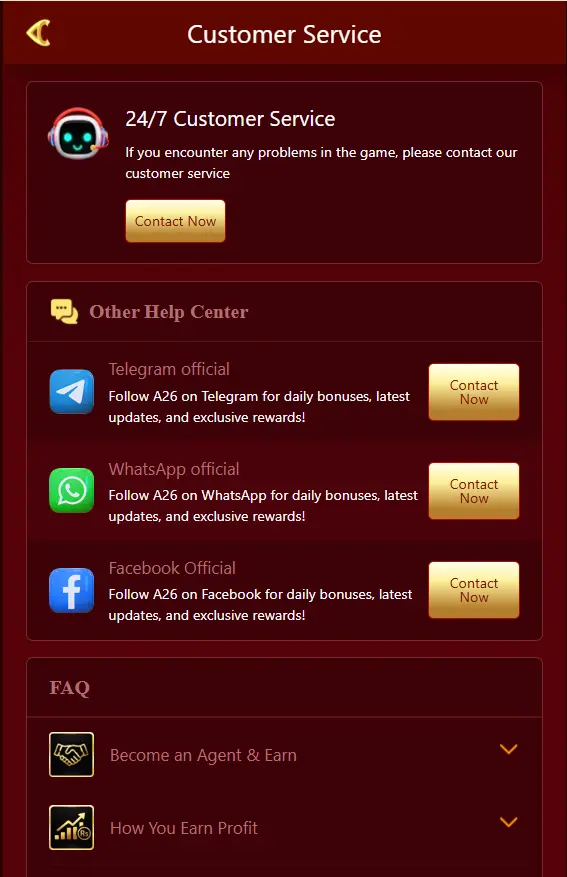
If other apps connect normally but A26 Game remains stuck, the issue may involve the application or its online service. You may need to try again later or contact the platform through its available support channel.
6. A26 Game APK Is Running Slowly
Limited storage or temporary app data can sometimes affect performance.
To improve performance:
- Close unused applications.
- Free up unnecessary files.
- Restart your phone.
- Clear the A26 Game cache.
- Check for a compatible application update.
If the problem started after an update, check whether the installed version is compatible with your device.
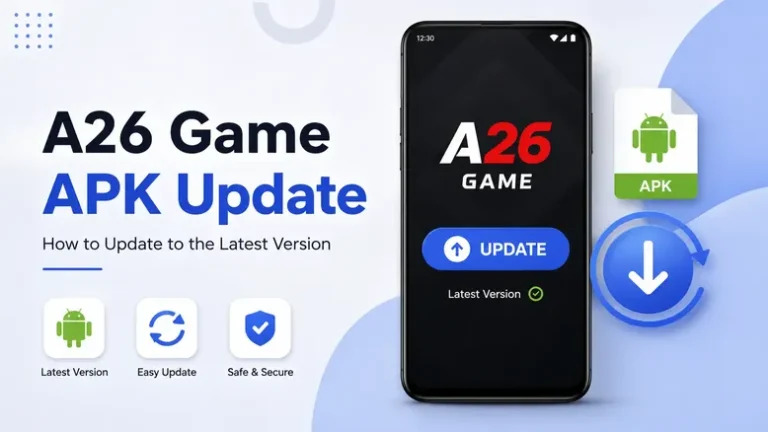
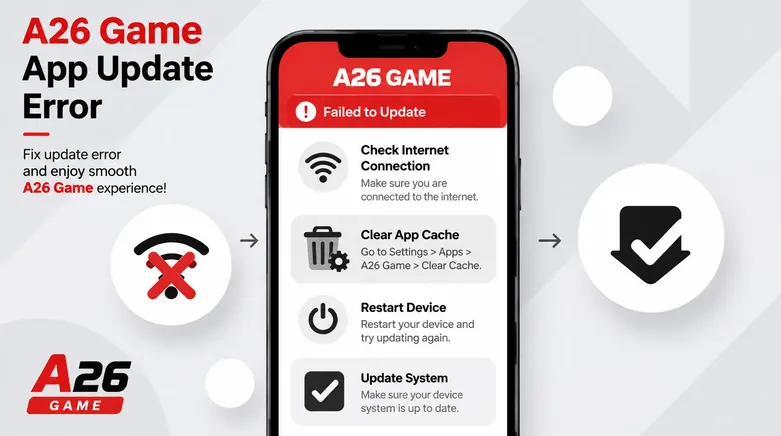
7. A26 Game APK Is Not Updating
If a newer APK will not install, check its compatibility with your Android version and existing installation. An incomplete download, insufficient storage, or a signature mismatch may prevent the update.
Download only from a source you trust and verify the version before installing it.
For step-by-step instructions, see our A26 Game APK Update Guide.
Tips to Avoid A26 Game APK Problems
Follow these precautions to reduce common issues:
- Keep your Android system updated.
- Download APK files only from sources you trust.
- Check compatibility before installation.
- Maintain sufficient free storage.
- Avoid modified or suspicious APK files.
- Review unexpected permission requests.
- Keep your login details secure.
Never share your password, PIN, or OTP with another person.
Frequently Asked Questions
Why is my A26 Game APK not working?
Common causes include compatibility problems, damaged downloads, insufficient storage, corrupted cache, or internet connection issues.
Why does A26 Game keep crashing?
Restart your phone, force-stop the app, clear its cache, and check whether a compatible update is available.
Should I uninstall A26 Game to fix it?
Not as your first step. Try basic troubleshooting before uninstalling, because removal may delete locally stored application data.
What should I do if A26 Game will not load?
Check your internet connection, restart the app, and try again. If the issue continues, it may be related to the application or its online service.
Final Thoughts
If your A26 Game APK is not working, start with simple fixes: restart your phone, check your connection, free up storage, and clear the app cache. For installation or update errors, verify the APK file, Android compatibility, and installation permissions.
Use a trusted download source and avoid repeatedly installing unknown APK files. If the problem persists after these steps, seek help through the platform’s available support channel.